 WordPress Simplified ⁃
cPanel - Files - FTP Connections
This feature will display information about any current FTP connections to your FTP website and allows you to terminate those connections
Important: To connect your local machine to your FTP server, read our How to Upload Files with FTP documentation or your third-party FTP client’s documentation.

Note: This interface is only available if your hosting provider enables FTP services on the server.
This interface does not appear on servers running the CloudLinux™ operating system.
View current FTP sessions
The interface includes the following information about connections to your FTP server:
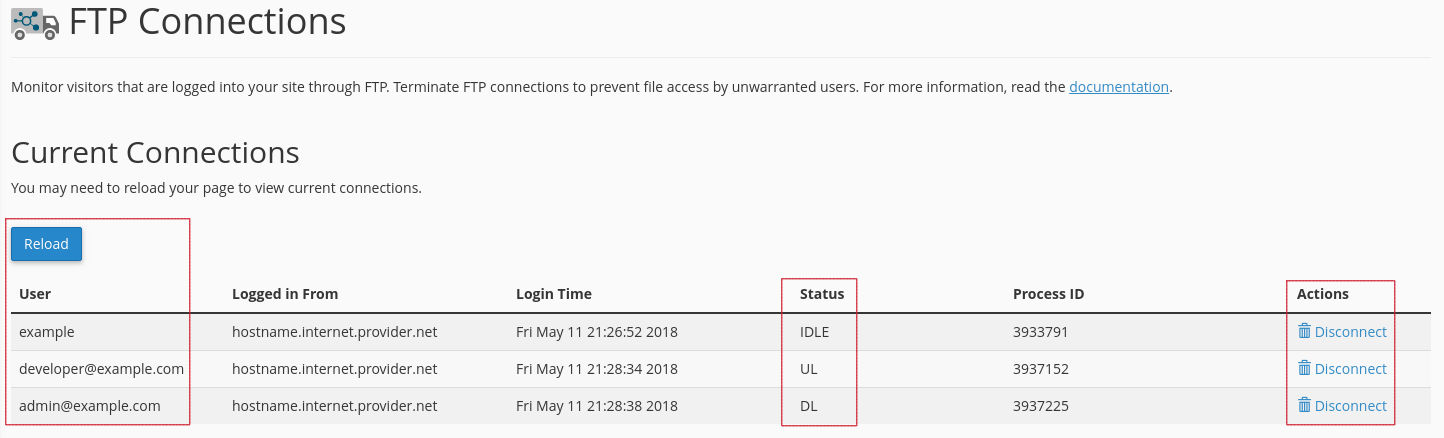
| Column | Description | Example |
|---|---|---|
| User | The username for the authenticated FTP account. | user |
| Logged in From | The host through which the user connected to your FTP server. | ns1.example.com |
| Login Time | The FTP session’s start time and date. | Fri Jul 19 13:19:20 2013 |
| Status | The FTP session’s status. | IDLE |
| Process ID | The FTP session’s process ID. | 13926 |
| Actions | The actions that you perform with on the FTP session:
|
Refresh
To refresh the list of FTP sessions and to see any new connections, click Reload.
Disconnect users from an FTP session
If you suspect malicious activity from a user, or if the user is idle, you can disconnect their FTP session.
To disconnect a user from an FTP session, perform the following steps:
1) Click Disconnect next to the FTP session that you wish to disconnect.
2) To verify that the server disconnected the session, click Reload.
Improve cPanel Support Using Our WHMCS cPanel Pre-Made Knowledgebase Articles for Easy Support
Related cPanel Tutorials and How To Guides
A beginners guide to cPanel Step by step tutorials
Tweet Share Pin Email