
Logging into the WordPress Dashboard
In order to start blogging or developing a website with WordPress you will need to login to the dashboard.
WordPress is an incredibly popular content management system (CMS), powering over 40% of all websites on the internet. Whether you’re setting up a personal blog, a business website, or an online store, the first step in managing your WordPress site is logging into the WordPress Dashboard. In this comprehensive guide, we’ll explore everything you need to know about accessing the WordPress Dashboard, along with tips and tricks for beginners.
What is the WordPress Dashboard?
The WordPress Dashboard is the control center of your website. It provides a user-friendly interface where you can manage your content, adjust settings, install plugins, and customize your site’s appearance. Once logged in, you can create posts, upload media, manage comments, and much more.
- • Content Management: Create, edit, and delete posts and pages.
- • Customization: Adjust the appearance and functionality of your site.
- • User Management: Control who has access to your site and what they can do.
- • Settings Configuration: Modify site settings to suit your needs.
- • Plugin Installation: Enhance your site’s functionality with plugins.
Your WordPress Login URL
To log into the WordPress Dashboard, you first need to know your login URL. The default login URL typically follows this format:
yourwebsite.com/wp-admin
Replace yourwebsite.com with your actual domain name. If your site uses a custom setup or if you are on a multisite network, you might have a different URL.

Enter Your Username and Password
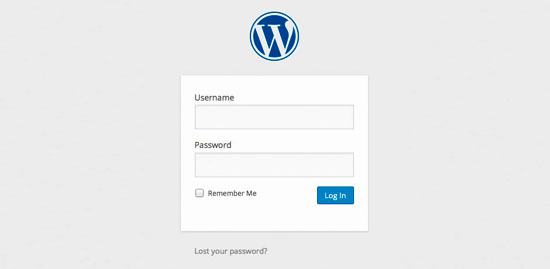
Once you’ve navigated to the login page, you will see a login form that prompts you to enter your username and password.
- • Username: This is the username you created when setting up your WordPress site.
- • Password: This is the password associated with your username.
There’s an option labeled “Remember Me.” If you check this box, your login information will be saved on your browser, making it easier to access your Dashboard in the future. Avoid using this feature on public or shared computers for security reasons.
After entering your credentials, click on the “Log In” button. If your username and password are correct, you will be redirected to the WordPress Dashboard.
Logging In From Softaculous
If you used Softaculous to install WordPress and can’t remember the URL, you can go to cPanel and access your login screen. From cPanel, click the icon for “Softaculous Apps Installer”.

Click on the box for “Installations.” This will show you everything you have installed using the Softaculous Apps system.
Find the website you want to access and click the pencil icon. This is the “Edit Details” screen of that particular site. In the Installation Details screen, you’ll see all of the information regarding your site. You can find the URL, database information and even set the site to automatically upgrade if you want. Scroll down to the “Info” section and click the “Admin URL” link.
The WordPress Dashboard
Once you’re successfully logged in, it’s important to familiarize yourself with the WordPress Dashboard layout. Here are the main components:
Admin Menu
On the left side of the Dashboard, you’ll find the Admin Menu, which contains various options:
- • Posts: Manage blog posts, including creating, editing, and categorizing them.
- • Pages: Create and manage static pages.
- • Media: Upload and manage images, videos, and other media files.
- • Comments: Moderate comments left on your posts.
- • Appearance: Customize your site’s theme and layout.
- • Plugins: Install and manage plugins to enhance your site’s functionality.
- • Users: Manage user accounts and permissions.
- • Settings: Adjust various site settings.
Admin Toolbar
At the top of the Dashboard, you’ll find the Admin Toolbar. This tool provides quick access to frequently used features such as adding new posts, viewing the site, and managing comments.
Dashboard Widgets
The main area of the Dashboard contains Widgets that provide useful information, such as:
- • At a Glance: Overview of your posts, pages, and comments.
- • Activity: Shows recent posts and comments.
- • Quick Draft: Allows you to quickly create a new post.
Customize Your Dashboard
WordPress allows you to customize your Dashboard by rearranging widgets or removing ones you don’t find useful. Simply drag and drop the widgets to your desired position or click the screen options at the top right to show/hide widgets.
Use Keyboard Shortcuts
Familiarize yourself with keyboard shortcuts to enhance your productivity. For example, Ctrl + N allows you to quickly create a new post, and Ctrl + P can help you publish content.
For a complete list of WordPress short cuts see Wordpress.org documentation page

Utilize the Help Section
If you’re unsure about any feature, don’t hesitate to use the built-in Help section. Click on the “Help” button located at the top right of the Dashboard for guidance.
Regularly Update Your Site
Keep your WordPress version, themes, and plugins updated. This ensures your site runs smoothly and securely. You can check for updates from the Dashboard, and it’s a good practice to perform updates regularly.
Back Up Your Site
Before making major changes, always back up your site. There are numerous plugins available to automate backups, ensuring you have a copy of your content and settings in case something goes wrong.

Summary
Logging into the WordPress Dashboard is the first step in managing your WordPress site effectively. With this guide, you’ve learned how to access your Dashboard, troubleshoot common login issues, and explore its various features.
To deepen your understanding of WordPress and the Dashboard, consider exploring the following resources:
 WordPress Resources and Links
Developers WordPress.org
Explore WordPress development with our comprehensive guides and resources. Learn to create themes, plugins, and optimize your site
Security WordPress.org
Discover WordPress Security best practices to protect your site. Learn about updates, secure hosting, and essential plugins to keep your content safe from threats
Themes WordPress.org
Browse thousands of free WordPress themes to customize your site’s look. Find the perfect design for your blog, business, or portfolio, and enhance your site’s functionality
Plugins WordPress.org
Unlock your site's potential with thousands of free WordPress plugins! Enhance functionality, improve performance, and add features easily. Explore, install, and elevate your website
Widgets WordPress.org
Discover WordPress widgets to customize your site’s layout easily! Add functionality and content in sidebars and footers without coding
Codex WordPress.org
Explore the WordPress Codex for comprehensive documentation and tutorials. Find guides on themes, plugins, and customization to help you master WordPress
Online Courses WordPress.org
Explore free WordPress courses designed for all skill levels! Learn about themes, plugins, and site management through structured lessons to boost your skills and create stunning websites
Community WordPress.org
Join the WordPress community! Collaborate with passionate contributors, share ideas, and help shape the future of WordPress. Get involved in events, discussions, and projects today
WordPress Resources RSHWeb.com
RSH Web Services complete WordPress resources. Our blog helps you find WordPress Resources like optimize your site, improve performance, and master all things WordPress
Also see: Using WordPress To Build A Website
Installation with cPanel and Softaculous. WordPress Themes. Changing Themes. Plugins, Creating New Pages. Appearance, Step by step guide, more
Overwhelmed With WordPress?
If WordPress is a bit much try our new AI Website builder and Website Importer
Author Bio: Mira Calden
A WordPress wizard with over eighteen years of experience designing, optimizing, and troubleshooting sites on the world’s favorite CMS WordPress....
Related WordPress Tutorials and How To Guides
Tweet Share Pin Email