 Our Easy Setup Of WordPress
cPanel - Softaculous - Email Settings
How to Change Your Email Settings in Softaculous
Log into your cPanel
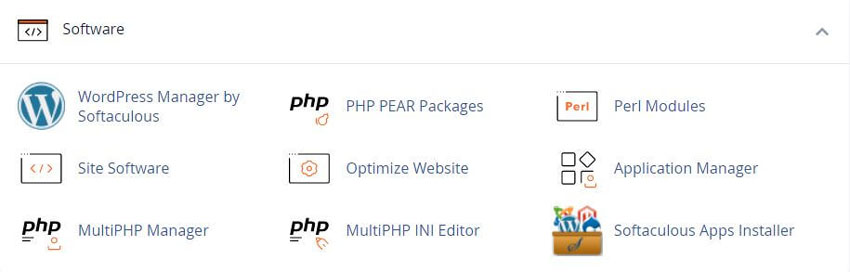
Click the Softaculous App Installer link in the Software section.
Email Settings
On the upper right corner of the page click on the “Email Settings” link (Envelope icon)
This will lead you to the Email Settings page
Updating Email Settings
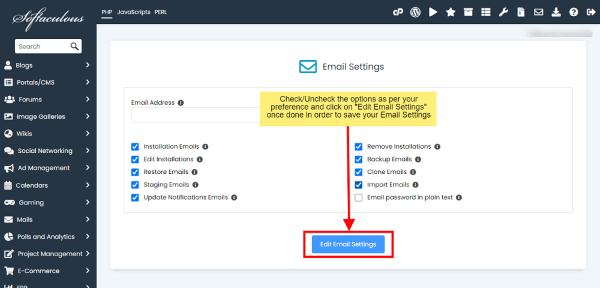
Once you are redirected to the Email Settings page you will see the options as shown in the screenshot below
Settings
Installation Emails:
Uncheck this checkbox if you do not want to receive email notification when you install a script
Remove Installations:
Uncheck this checkbox if you do not want to receive email notification when you uninstall a script
Edit Installations:
Uncheck this checkbox if you do not want to receive email notification when you edit an installation
Backup Emails:
Uncheck this checkbox if you do not want to receive email notification when you backup an installation
Restore Emails:
Uncheck this checkbox if you do not want to receive email notification when you restore a backup
Template Emails:
Send an email containing template details when you create a template of any installation
Restore Template Emails:
Send an email containing template restore details when you restore any template
Clone Emails:
Uncheck this checkbox if you do not want to receive email notification when you clone an installation
Staging Emails:
Uncheck this checkbox if you do not want to receive email notification when you create a staging copy of your installation
Import Emails:
Uncheck this checkbox if you do not want to receive email notification when you import installation
Disable All Update Notification Emails:
Select this checkbox if you do not want to receive email notification about script updates available or plugin/themes update available (Note : This checkbox needs to be selected if you do not want to receive these emails)
Email password in plain text:
If checked, the passwords will be sent in plain-text to the users via email for install, clone, etc.
Select the settings as per your preference and hit the Edit Email Settings button to save the updated settings
Related Softaculous Tutorials and How To Guides
Wide range of key features for website management

Softaculous End-user Documentation
See our WHMCS cPanel Knowledgebase add-on module for Hosting Companies
Covering cPanel, WordPress, FTP and Softaculous
Helpful cPanel Tutorials and How-To Guides
cPanel manage every element of your web hosting account
Tweet Share Pin Email
Error: No site found with the domain 'mail.rshweb.com' (Learn more)