 Providing
cPanel - Softaculous - Themes
Installing themes through Softaculous is a streamlined way to control the appearance and layout of your website without manual uploads or complex configuration. Softaculous provides a built in theme installer for supported applications, allowing site owners to preview, install, and manage themes directly from their hosting control panel. This guide explains the complete theme installation and management process so you can customize your site efficiently while maintaining stability and performance.

What the Theme Installer Does
The Softaculous theme installer allows you to browse available themes for supported scripts and apply them to an existing installation. Themes installed through Softaculous integrate directly with the application and do not require manual file handling. This reduces the risk of incorrect permissions or broken layouts while saving time during setup.
Why Use Softaculous for Theme Installation
- Eliminates manual uploads and file configuration
- Ensures compatibility with the installed application
- Allows quick visual customization without downtime
Theme Installation Process
The installation workflow follows a simple and controlled sequence designed to prevent errors and maintain site integrity.
Step by Step Theme Installation
Log into your cPanel
Click the Softaculous App Installer link in the Software section.
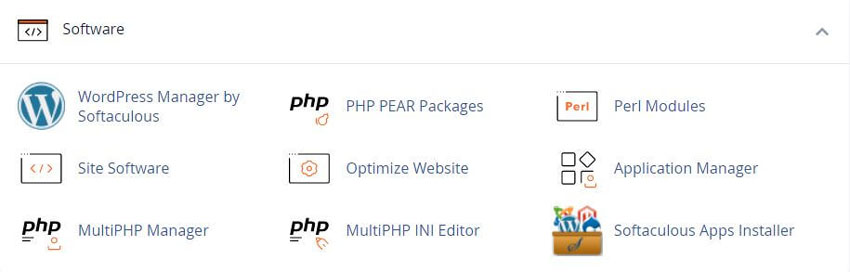
- Select the Installed Application – Navigate to the list of installed applications and choose the one where the theme will be applied.
- Open the Themes Section – Locate the themes option within the application management area.
- Browse and Choose a Theme – Review available themes and select one that matches your design goals.
- Install the Theme – Click the install option and allow Softaculous to complete the process.
- Verify Installation – Once installed, confirm the theme appears correctly on the site.


Managing Themes After Installation
After installation, proper theme management helps maintain performance and security. Softaculous allows you to install multiple themes, but only one should remain active at a time. Unused themes should be removed to reduce clutter and potential vulnerabilities.
Theme Management Best Practices
- Preview themes before applying them to avoid layout issues
- Remove unused themes to reduce security risks
- Test theme changes on a staging site when possible
- Confirm compatibility with plugins and extensions
Using Softaculous to install and manage themes provides a controlled and efficient way to customize your website. By following a structured workflow and applying best practices, you can maintain a visually appealing site while ensuring long term stability and ease of maintenance.
Related Softaculous Tutorials and How To Guides
Wide range of key features for website management

Softaculous End-user Documentation
See our WHMCS cPanel Knowledgebase add-on module for Hosting Companies
Covering cPanel, WordPress, FTP and Softaculous
Related cPanel Tutorials and How To Guides
Most all website hosting companies now offer cPanel
Tweet Share Pin Email
Error: No site found with the domain 'mail.rshweb.com' (Learn more)